
Centerpoint Connect + CompanyCam
Bring the jobsite into the property record.
Connect a CompanyCam project to a Centerpoint property. Import its photos into the File Library, where your team can find them with the job.
You choose when to sync. Photos move one way, from CompanyCam into Centerpoint.
Jobsite photos, in Centerpoint
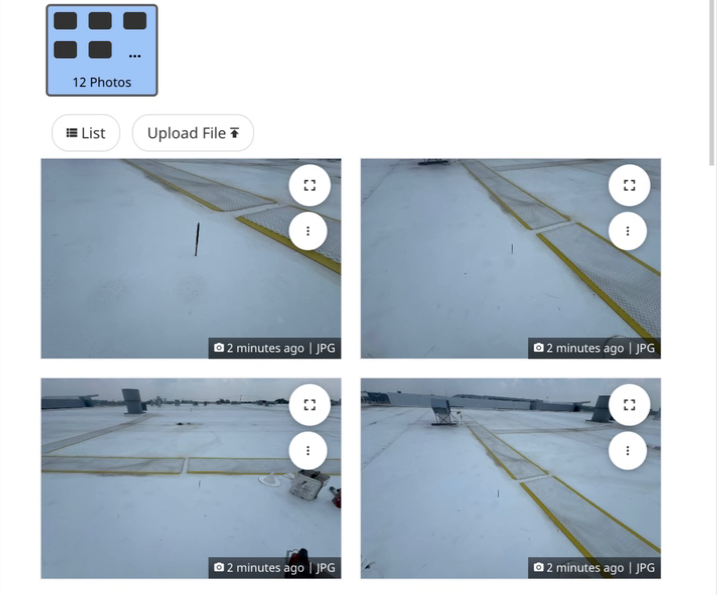


Photos with the property
One job. A clearer photo trail.
Keep capturing in CompanyCam. Bring the photos into the Centerpoint property when your team needs them.
Match the right job
Link the CompanyCam project to the property for the same job.
Sync when you’re ready
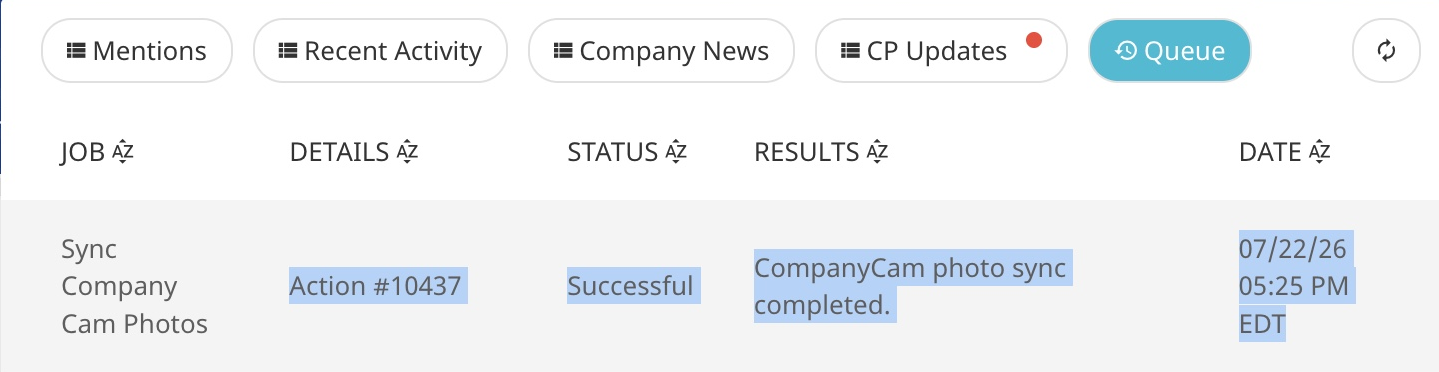
Start Sync Photos and follow the queue as images are checked and imported.
Keep photos in context
Find the imported images in the property’s File Library under Photos.
The photo workflow
From connection to photo library.
Three practical steps. Start with an existing Centerpoint property and a CompanyCam project for the same job.
Centerpoint Support must enable the integration first. Photo limits vary by plan; confirm your account’s allowance before importing.
Connect your CompanyCam account.
Open Account Settings Integrations CompanyCam Integration Settings. Enter your authentication token and select Save.
Complete this after Centerpoint Support enables the integration.

Link the matching project.
Edit the Centerpoint property, choose its CompanyCam Project and save.
Use the project and property for the same job.

Sync. Then open your photos.
Select Sync Photos beside the CompanyCam Project field or in Connection Information. Follow the queue as the import runs.
Open File Library Photos to view the imported images.
Run Sync Photos again for new photos. Images already imported are skipped.
A few useful details
Before your first sync.
A focused photo connection, with control over when each import starts.
Do photos sync automatically in both directions?
No. This is a one-way photo import from CompanyCam into Centerpoint. Your team starts each import with Sync Photos.
Do the property and project need to exist first?
Yes. Create the property and CompanyCam project for the same job, then link the project on the property before starting the import.
Will another sync create duplicate photos?
Previously imported photos are skipped. The queue reports the checked, synced and skipped counts for the import.
Is there a limit to how many photos we can import?
Photo limits vary by plan. Centerpoint Support can confirm the allowance for your account and help enable the integration.